
Start here · 6 min read
Create your first group and add people
Create a memorable group address and connect people from the shared directory.
Create the group
- Open Groups
Choose Groups in the main navigation. Select the team that should own the group.
- Choose Add group
Give the group a clear name, such as Parents, Coaches, or Flight crew.
- Choose the address
The local part appears before the team domain. A Parents group in the
iwrhsteam might useparents@iwrhs.telltell.app. - Save the group
TellTell checks the address before creating it. The new group then appears in the team’s group directory.
Add people to the group
A membership connects a person from the shared People directory to a group. Adding the same person to several groups does not create duplicate people.
- Open the group’s Members tab
The list shows the people currently in this group and the member columns shared by its team.
- Choose Add member
Search the shared directory and select an existing person. If they are not in the directory, create the person first.
- Review the membership
Confirm the person’s email and membership status. A newly eligible address receives the group’s welcome message.
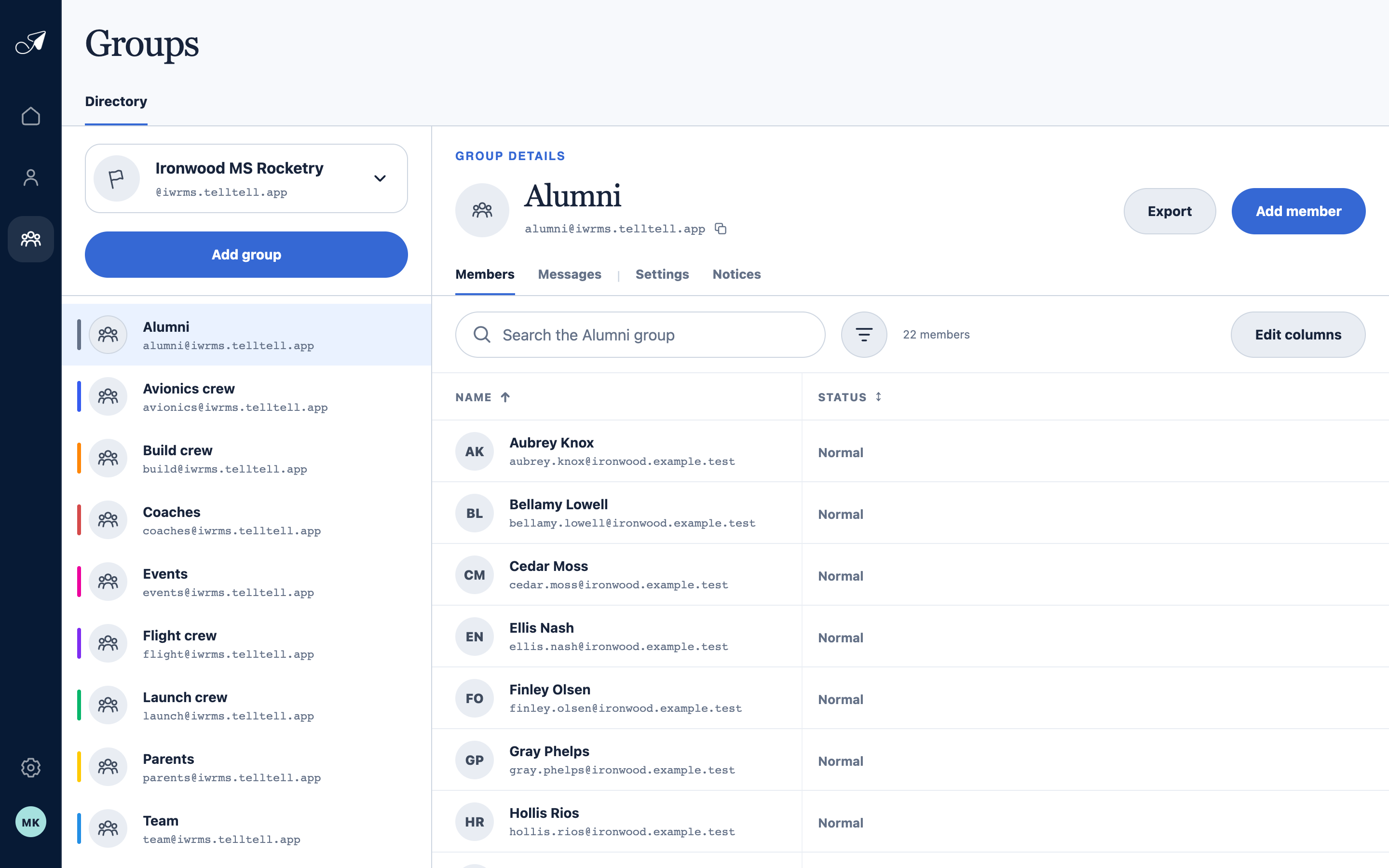
The team’s groups remain on the left while the selected group’s members and controls stay in view.
- 1Groups in the selected team
- 2Selected group and address
- 3Add a directory person
- 4Current group members
Before anyone sends
- Open Settings for the group and confirm who can email this group.
- Choose where replies go: the whole group, a specific address, or nowhere.
- Open Notices to review the required welcome, message footer, and rejection copy.