
People and memberships · 5 min read
Add or remove group memberships
Add or remove one person, update several people, and understand welcome and unsubscribe behavior.
Manage one person’s memberships
- Open the person
From People, select the person and open Memberships.
- Add a membership
Choose Add membership, select the team and group, then confirm. Eligible addresses receive the group welcome independently.
- Edit several memberships
Choose Edit to review the person’s group choices together and save the new selection.
- Remove a membership
Choose Remove beside the group and confirm. Removal stops future group deliveries and does not send a removal message.
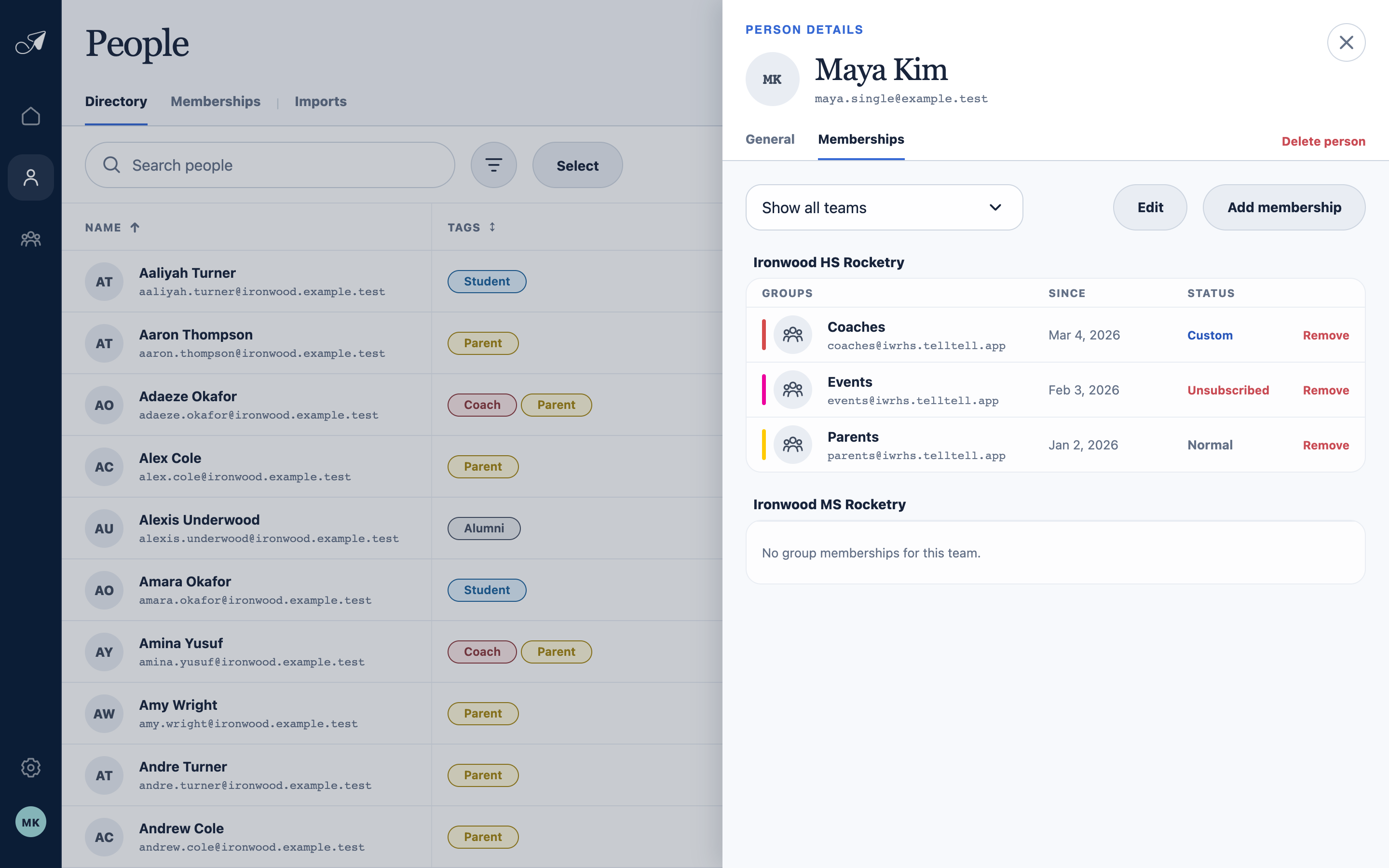
A person’s Memberships view shows every group connection and its current address-level status summary.
- 1Filter memberships by team
- 2Edit or add memberships
- 3Group and joined date
- 4Subscription status summary
Change groups for several people
In the Directory, choose Select, check the people, and choose Change groups. Pick whether to add or remove the selected people, choose the groups, review the count, and save.
For roster-style editing across many people and groups in one team, use the Memberships grid instead.