
Teams and groups · 6 min read
Create, edit, or delete a group
Choose a memorable address, maintain group identity, and retire a group safely.
Create a group
- Open Groups and choose a team
Use the team selector to choose the shared domain and Manager scope for the new group.
- Choose Add group
Enter a clear group name and optionally choose a color for quick recognition.
- Choose the email prefix
Enter the part before the team domain. TellTell checks the complete address for availability.
- Add a description and create
A short purpose statement helps organizers distinguish similar rosters.
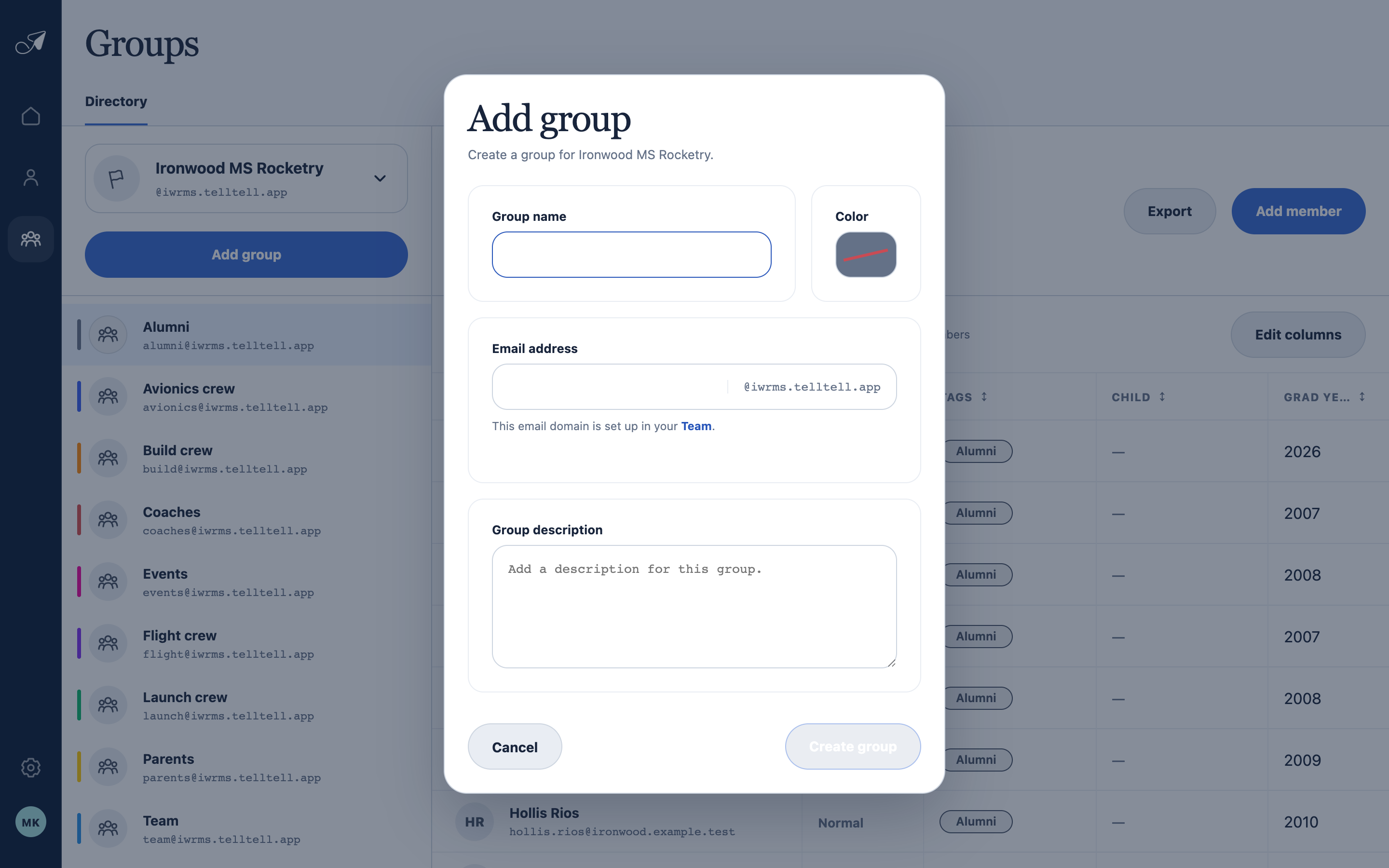
The team fixes the domain; the group chooses its name, address prefix, color, and description.
- 1Group name and color
- 2Address prefix
- 3Inherited team domain
- 4Optional description
Edit group details
Select the group, open Settings, and update its name, color, email prefix, or description. Sender permissions and reply behavior are lower on the same page. Choose Save changes when the complete configuration is ready.
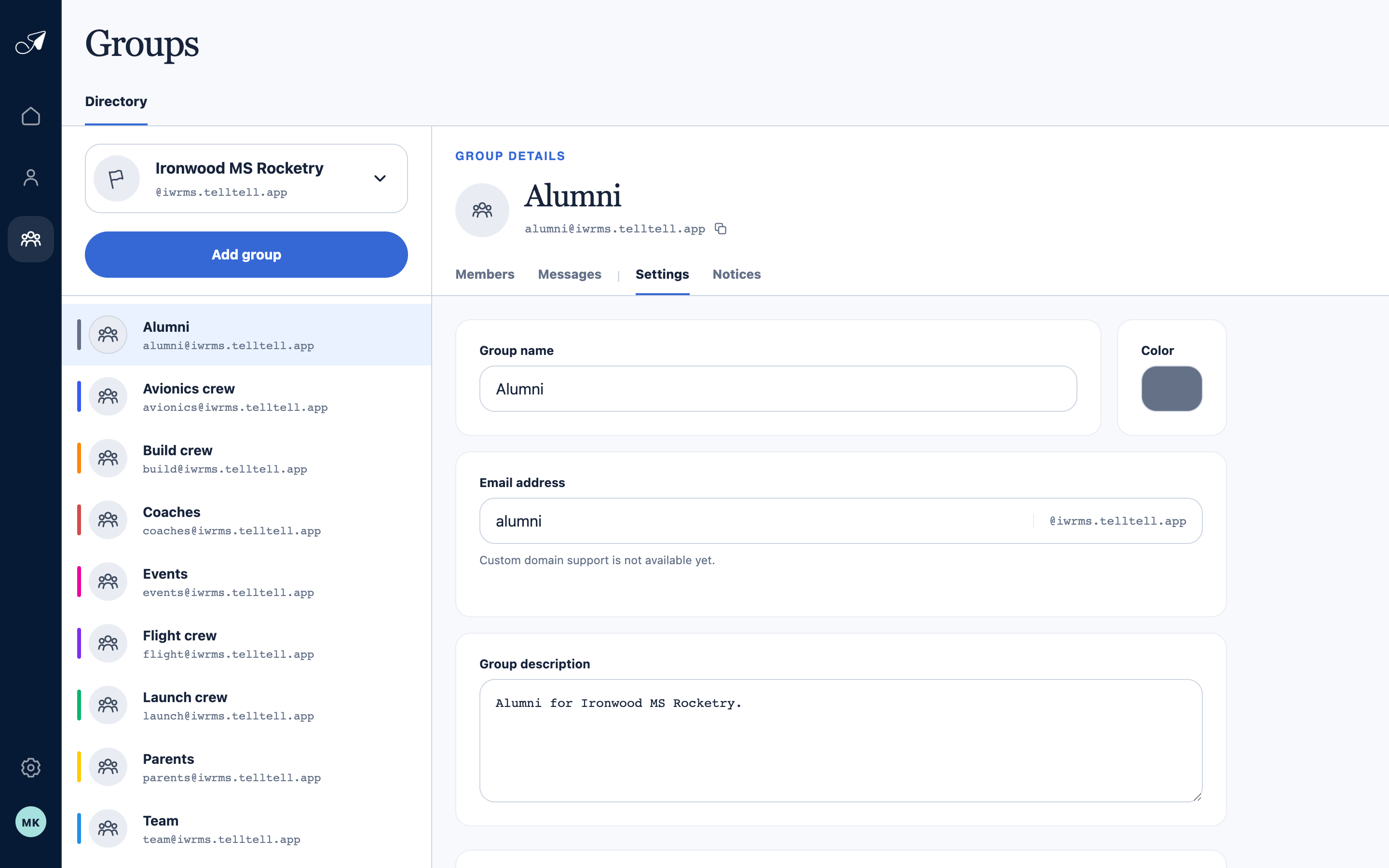
Group Settings keeps identity and mail behavior together so one save applies a coherent configuration.
- 1Groups in the selected team
- 2Selected group and address
- 3Editable identity
- 4Address prefix and team domain
Delete a group
At the bottom of Settings, choose Delete group and complete the confirmation. TellTell retires the group address, removes its active memberships, and disables its welcome behavior.