
Teams and groups · 5 min read
Add and remove group members
Maintain one group’s roster using people from the shared directory.
Add a member
- Open the group’s Members tab
The roster shows current members, address status, and the fields selected as columns for this team.
- Choose Add member
Search the account-wide People directory and select an existing person.
- Create the person if needed
An Admin can add someone new when no directory record exists. Avoid creating a duplicate for another address owned by the same person.
- Confirm the membership
Every eligible attached address receives the group welcome independently. Address-specific unsubscribes remain in effect.
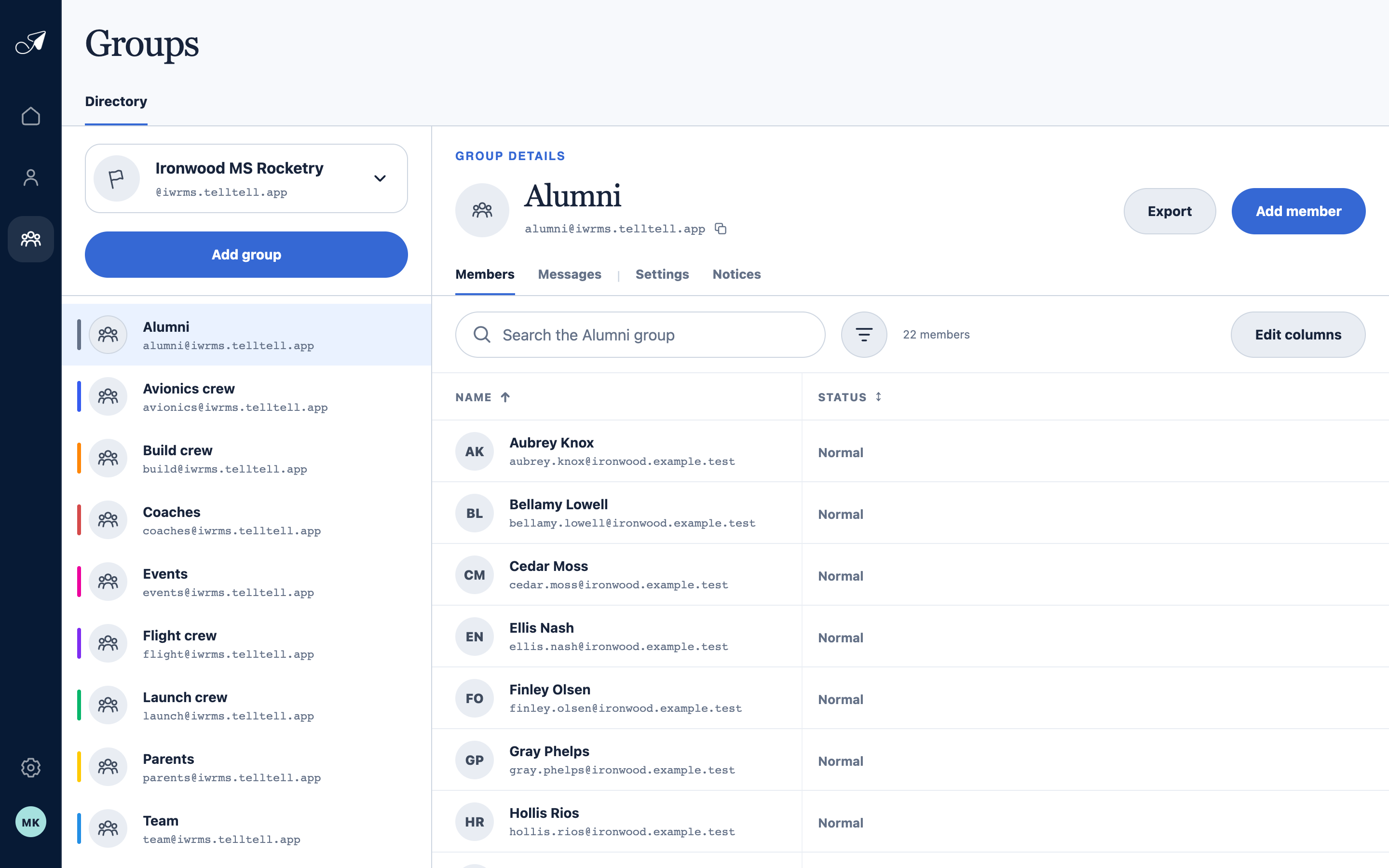
The Members tab combines one group’s roster with searchable fields from the shared People directory.
- 1Groups in this team
- 2Selected group and address
- 3Add a directory person
- 4Current group members
Search, filter, and inspect the roster
Search by name or any attached email address. Use filters and Edit columns to focus on membership status, tags, relationships, joined date, and other configured fields. Saved columns apply to every group in the team and to every manager who can view it. Select a person to open their details without leaving the group.
Remove a member
Open the person from the roster and choose Remove from Group, or edit the person’s memberships from People. Removal stops future delivery for this group and does not send a removal message.